ECINET & SIR Submission Process 2026
Complete Step-by-Step Guide for Special Intensive Revision (SIR)
Note: This guide is an initiative and intended as a general reference to assist citizens with the SIR process. Actual procedures may vary. For the latest and official information, please contact your Booth Level Officer (BLO), Kshetriya Karyalay/Ward Office/MP/MLA etc, or visit the official Election Commission website or nearest voters electoral office.
1. Introduction
What is SIR?
The Special Intensive Revision (SIR) is a special campaign conducted by the Election Commission of India (ECI) to verify and update the electoral roll. It helps ensure that only eligible citizens are included and that voter information is accurate and up to date.
Objectives of SIR
Verify the identity of existing voters.
Remove duplicate or incorrect entries.
Update voter details.
Add eligible citizens who are not yet registered.
Improve the accuracy of the electoral roll.
2. What is ECINET?
ECINET (Election Commission of India Network) is the official application and portal provided by the Election Commission of India for voter-related services.
Using ECINET, you can:
Register or log in to your account.
Search for your voter details.
Locate your Polling Station.
Contact your Booth Level Officer (BLO).
Fill and submit the SIR Enumeration Form (where available).
Track your application status.
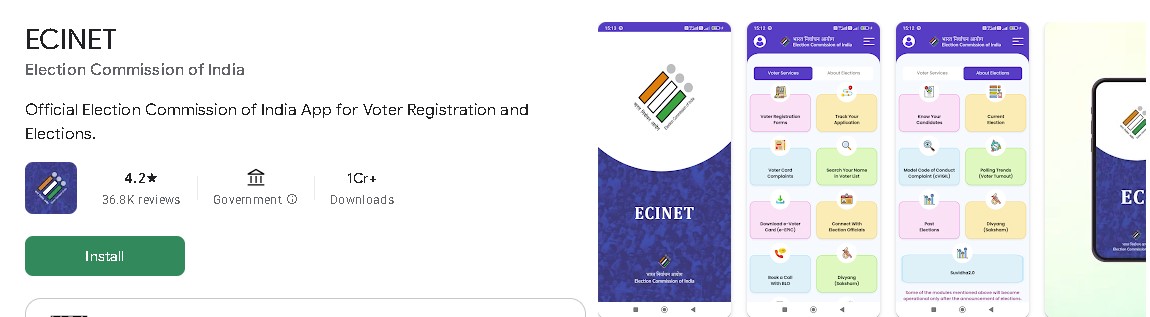
📷 Screenshot: ECINET App icon on Google Play Store / Apple App Store
https://play.google.com/store/search?q=ECInET&c=apps&hl=en_IN
3. Before You Begin
Keep the Voter card ready to tally information on ECINET app.
Download the ECINET App
Android
Open Google Play Store.
Search for ECINET.
Verify that the publisher is the Election Commission of India.
Tap Install.
Wait for the installation to complete.
iPhone
Open the Apple App Store.
Search for ECINET.
Install the official app.
Open the app.
5. Register in ECINET
Existing Users
Open ECINET.
Tap Login.
Enter your registered mobile number or EPIC (if supported).
Enter your password or click on send OTP.
Enter OTP and Tap Login.
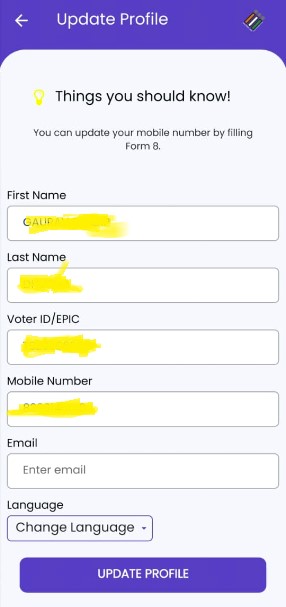
Once logged in you will be on update profile page.
Make sure that all information here is exactly as per your voter card, spellings etc.
Update any new information if required/missing like, Voter ID/EPIC or Email.
Click Update profile.
📷 Screenshot :
For New Users
Open ECINET.
Try to enter your mobile number, if it logs in you are registered user.
If it says “No records found with username XXXXX”
Click on New user below.
Enter your mobile number.
Enter the OTP received.
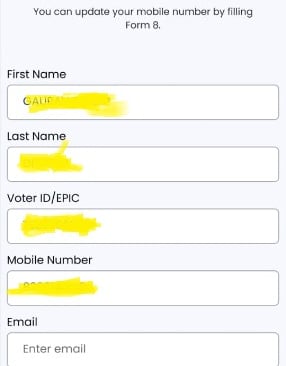
Once logged in, click on top left corner circle icon and make sure your profile is updated.
Make sure that all information here is exactly as per your voter card, spellings etc.
Update any new information if required/missing like, Voter ID/EPIC or Email.
Save your details.
6. Search Your Voter Details
Option 1 – Search Using EPIC Number
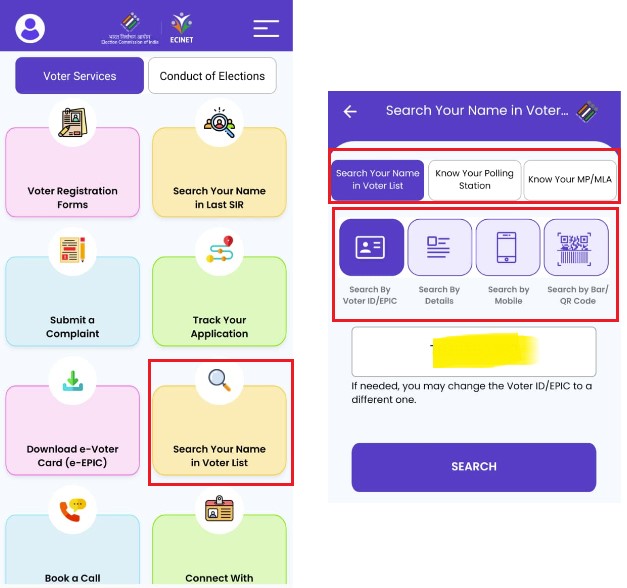
Once logged in to ECINET app, Click on “Search your name in Voter List”.
Select Search by EPIC and other options available.
Enter your EPIC (Voter ID) number.
Tap Search.
Once found, Verify your details and Download it
Option 2 – Search Without EPIC
If you do not know your EPIC:
Select Search by Details.
Enter:
Name
Father's or Husband's Name
Age or Date of Birth
State
District
Assembly Constituency (if known)
Tap Search.
7. If Your Name Is Found
If your name appears in the electoral roll:
Verify that your name, address, age, and polling station are correct.
Check whether any updates are needed.
Make a note of all details specially, Assembly Constituency, Parliamentary Constituency, District, State, Part No, Part Name, Serial No and Polling station (this is where BLO can be reached physically).
If asked during the SIR process, complete and submit the Enumeration Form with the required documents.
8. If Your Name Is NOT Found
If your name is not found:
Search again using different spellings or fewer details, try all possible ways.
Ask other family members to search their records.
If you are eligible to vote, but not registered as voter, follow the process for a new voter registration or as advised by your BLO. (Booth Level Officer)
Contact your BLO for assistance, by clicking on “Know your polling station, Or Know your MP/MLA”or you can visit nearest MLA office, ward office, local Electoral Registration Office, polling station, where ever you stay, they can guide you. You can also submit new voter registration application online, if window available now.
Once you contacted any of the above medium, get blank SIR form from them and submit it along new voter registration form and required documents.
Refer below section below. Filling the SIR Enumeration Form (After Receiving the Form from BLO)
9. How to Find Your BLO
You can locate your Booth Level Officer (BLO):
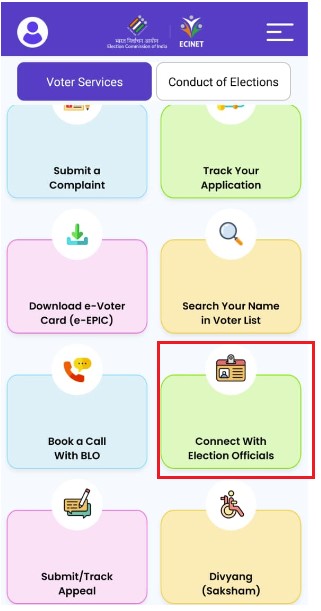
Through the ECINET app
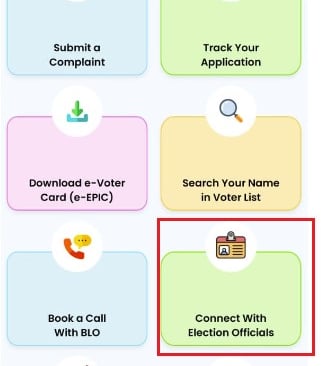
Click on “Connect with Election Officials”
Enter your Voter Card number.
Click on “Know your BLO”.
You can see photo of your BLO, Name, Assembly Constituency name, number and his Phone number.
Click on “Book a call with BLO” Or
You can directly call him to get your SIR Form.
Before contacting your BLO, keep the following information ready:
Full Name
Date of Birth
Address
Mobile Number
EPIC Number (if available)
10. Common Questions
Q. I don't know my Voter ID number.
Search using your name and other personal details.
Q. I lost my Voter ID card.
Use the search facility to locate your record and note your EPIC number.
Q. I have turned 18.
Follow the first-time voter registration process as instructed by the Election Commission.
Q. My address has changed.
Inform your BLO or submit the appropriate request to update your address.
Q. I cannot contact my BLO.
Contact the Electoral Registration Officer (ERO) or your district election office for assistance. You can also contact your polling station, MLA office, electrol website etc.
Filling the SIR Enumeration Form (After Receiving the Form from BLO/MLA/MP etc)
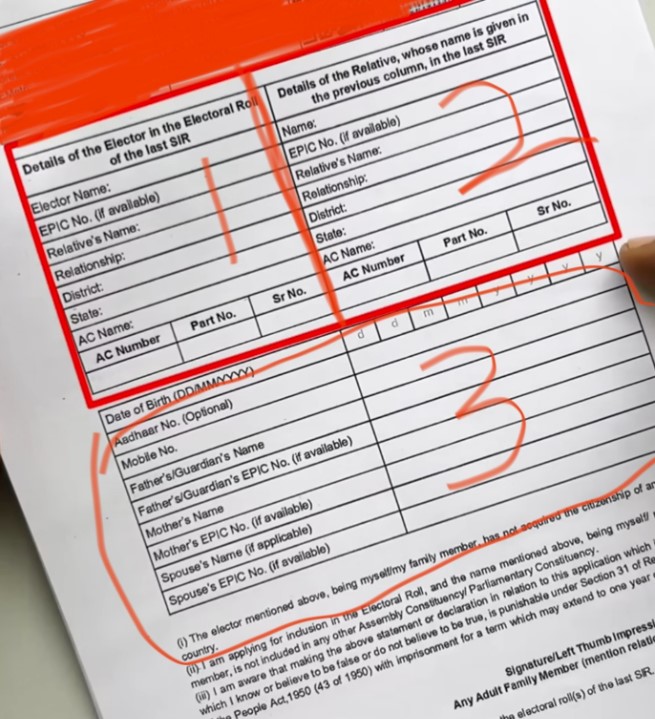
The SIR form is divided in 3 sections.
Step 1 – Check Which Category You Belong To
Category A – Your own name is available in the previous (2002) SIR Electoral Roll
✔ Fill Section 1 and Section 3
Do NOT fill Section 2.
Category B – Your name is NOT in the previous SIR Electoral Roll, but your father, mother, husband, wife, grandfather or grandmother is in the previous SIR Roll
✔ Fill Section 2 and Section 3
Do NOT fill Section 1.
Category C – Neither your name nor any eligible relative's name is available in the previous SIR Electoral Roll, OR if you are new Voter (Form 6).
✔ Fill Section 3 only
Leave Sections 1 and 2 blank.
Submit the documents as per advised by BLO of whoever gave you the SIR form.
In short, Submit this SIR form + Form 6 (new voter registration) + Submit document to proof.
If DOB on or before 30th June 1987 > Mostly 1 self-Document is required.
If DOB is between 1st July 1987 to 2nd Dec 2004 > Mostly 2 Documents are required Self + 1 Parent (father or mother)
If DOB is between 3rd Dec 2004 or later, and eligible to vote, means 18yrs and above > Mostly 3 Documents are required Self + both Parent (father & mother)
How to Fill Section 1
(For voters whose name appears in the previous 2002 SIR Roll)
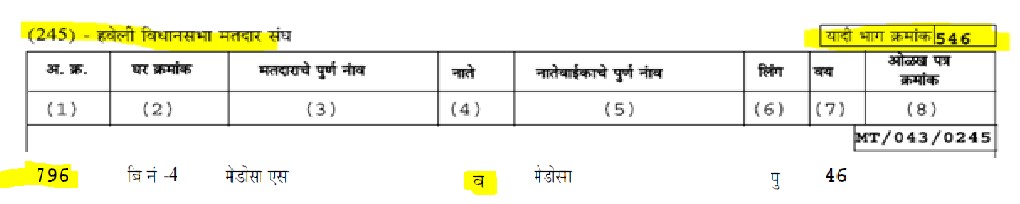
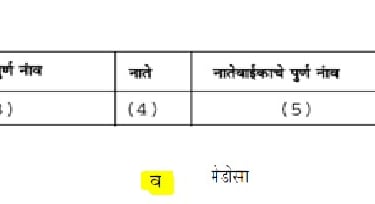
Enter exactly as recorded in the previous SIR Electoral Roll, no spelling mistake, write in hindi if required.:
· Elector Name : Your Name same as per 2002 SIR list.
· EPIC Number (if available) : Your Name same as per 2002 SIR list, if it was not there, leave it blank.
· Relative's Name : Same as per 2002 SIR list.
· Relationship (Father/Mother/Husband/Wife) : same as per 2002 SIR list
· District : Same as per 2002 SIR list.
· State : Same as per 2002 SIR list.
· Assembly Constituency (AC Name) : Same as per 2002 SIR list.
· AC Number : Same as per 2002 SIR list.
· Part Number : Same as per 2002 SIR list.
· Serial Number : Same as per 2002 SIR list.
Tip: Copy these details exactly from the previous SIR record. Avoid spelling mistakes.
How to Fill Section 2
(If your own name is not in the previous SIR Roll but your relative's name is)
Fill your relative's details:
· Relative's Name: Mention the name of your relative, whose details you found in 2002 SIR list.
· Relative's EPIC Number (if available) : Same as per relative 2002 SIR list, if it’s not there leave it blank
· Relative’s Name : This is relative name mention in 2002 SIR list, for the above Relative Name you mentioned.
· Your relationship (Father, Mother, Husband, Wife, Grandfather, Grandmother) : Same as per relative 2002 SIR list, This is relation between above “Relative name you mention above and their relative name.
· District : Same as per relative 2002 SIR list
· State : Same as per relative 2002 SIR list
· Assembly Constituency Name : Same as per relative 2002 SIR list
· Assembly Constituency Number : Same as per relative 2002 SIR list
· Part Number : Same as per relative 2002 SIR list
· Serial Number : Same as per relative 2002 SIR list
How to Fill Section 3
Everyone must complete this section.
Fill:
· Date of Birth : Your own/Actual Application details.
· Aadhaar Number (Optional) : Your own/Actual Application details.
· Mobile Number : Your own/Actual Application details.
· Father's/Guardian's Name : Your own/Actual Application details.
· Father's EPIC (if available) : Your own/Actual Application details.
· Mother's Name : Your own/Actual Application details.
· Mother's EPIC (if available) : Your own/Actual Application details.
· Spouse Name (if applicable) : Your own/Actual Application details.
· Spouse EPIC (if available) : Your own/Actual Application details.
Write clearly in BLOCK LETTERS or Hindi.
How to Find AC Number, Part Number & Serial Number
You can obtain these details in several ways:
Method 1 – ECINET App
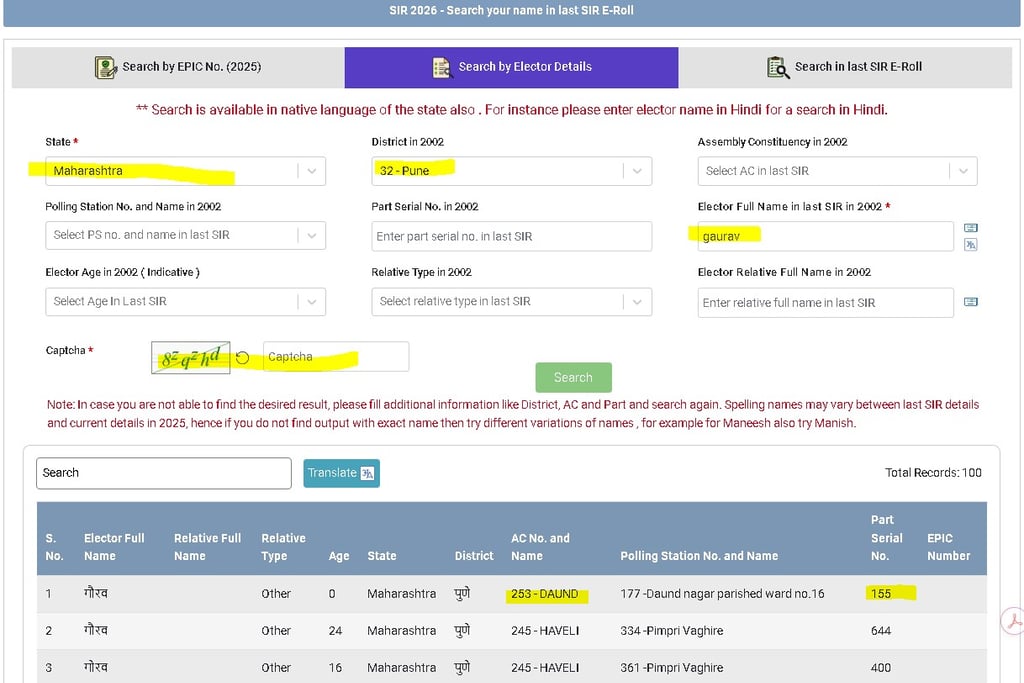
1. Log in to ECINET.
2. Click on “Search your Name in Last SIR”.
3. Just select State and Elector Full name in last SIR 2002
4. As other details are not mandatory. This means even if you were in other state of india in 2002, you can search this way.
5. If you know your district or assembly constituency etc, it will be better to get details soon.
6. In the name section, try entering first name or last name with different possible spellings, you can even try to search your neighbours or relative you know who were there with you in 2002, so in the same list your name may be there.
7. Once you search , it will display results below.
8. Note:
o Assembly Constituency (AC)
o AC Number
o Part Number
o Serial Number
Method 2 – Voters Portal
Sign in to the voter services portal, search your EPIC record, and note the Assembly Constituency, Part Number, and Serial Number shown with your voter details.)
https://voters.eci.gov.in/searchinsir/s2ua4dpdf-jk4qwodse
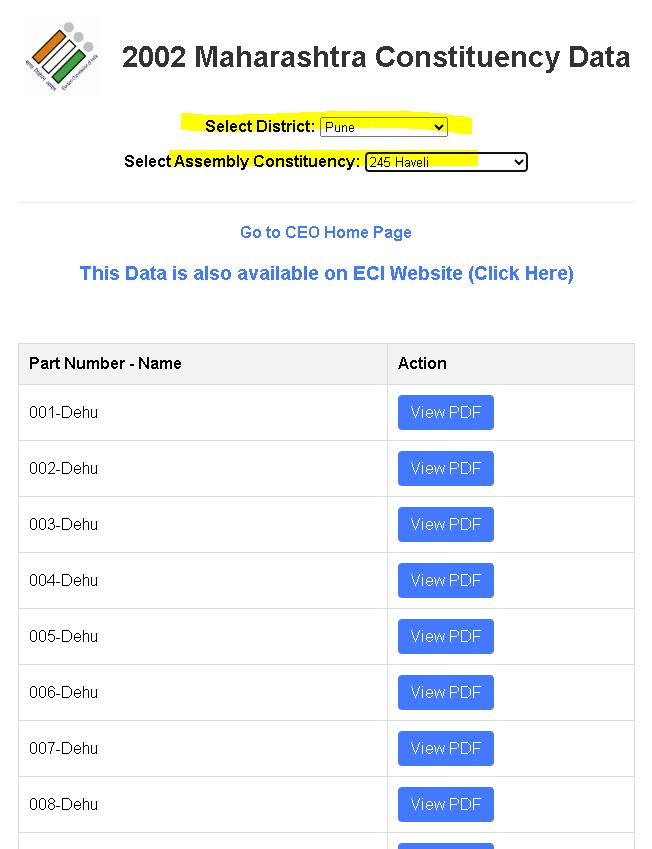
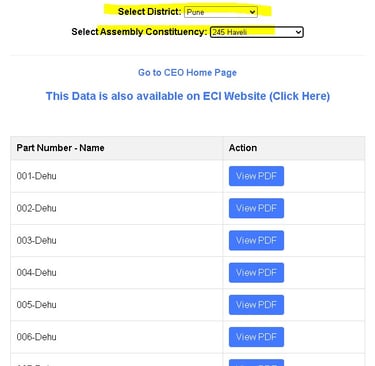
Once you found the above details in 2002 SIR list. Click on below link and select, same found District and Assembly Constituency, to download the detailed information.
https://ceoelection.maharashtra.gov.in/2002/2002rolldata.aspx
Method 3 – Ask Your BLO
Your BLO can provide:
· AC Name
· AC Number
· Part Number
· Serial Number
How to Submit the SIR Form
After completing the form:
✔ Review all details.
✔ Sign or put your thumb impression.
✔ Attach any documents if requested.
✔ Submit the completed form to your BLO.
Request an acknowledgement or confirmation that your form has been received.
How to Track Your SIR Form
After the BLO uploads your form:
1. Log in to the voter services portal via https://voters.eci.gov.in/ OR open ECINET app.
2. Open Fill Enumeration Form.
3. Enter your EPIC.
4. If uploaded, you'll see a confirmation indicating your form has been submitted; otherwise, you'll be able to proceed with a new form, which can indicate the paper form has not yet been uploaded. In such case follow up with your BLO, asking him to submit the form from his side asap, before the due date. Once BLO submits, it then it should display "Your form has alrady been submitted. For more details contact your BLO.
Online Submission Using Aadhaar OTP (No BLO Visit Required)
You may be able to complete the process entirely online if all of the following are true:
✅ Your name in the Electoral Roll exactly matches your name in Aadhaar.
✅ Your EPIC is linked with your mobile number.
✅ Your Aadhaar is linked to a mobile number so you can receive the Aadhaar OTP.
Steps: If above pre-requisite is not met, please don’t use this option.
1. Log in to the voter services portal via https://voters.eci.gov.in/
2. Select Fill Enumeration Form.
3. Enter your EPIC/ voter ID card number and OTP.
4. Select State and your EPIC/ voter ID card number
5. Verify your details.
6. Fill the required information.
7. Complete the Aadhaar-based e-sign using the OTP.
8. Submit the form online.
In this case, you generally do not need to visit the BLO only for form submission, although the Election Commission may still contact you later if verification or additional documents are required.
Note
If your name in Aadhaar does not exactly match your name in the Electoral Roll, the online Aadhaar e-sign process may not work. In that situation, complete the form offline and submit it through your BLO.
Contact
Reach out for prayers or any queries
ContacT US
Parish Priest +91-86000 71373
© 2025. All rights reserved.